
THE CONNECTIONS BEHIND YOUR BUSINESS
Why Is My Microsoft 365 Email Going to Spam? Here's What to Check.
Follow the evidence from sending source to recipient: SPF, DKIM, DMARC alignment, message trace, headers, reputation, and a repeatable test plan.
Your invoice arrived, but your customer’s reply says they found it in junk. The useful question is not simply “Is my DNS correct?” It is which sending path produced that message, what the receiving system observed, and which decision put it there?
The diagrams and header fragments are constructed educational examples, not screenshots or captured customer evidence. Administrative access and features may differ in your subscription or customer portal.
Start Here — 2-Minute Diagnosis
PICK THE RECEIVING SIDE FIRST
Inbound: mail sent to you is in junk
Use the message received in your Microsoft 365 mailbox. Begin with message trace and trusted receiving headers below. Your outbound SPF record does not authorize somebody else's sender.
Neither? A bounce, delay, or quarantine needs its own trace or rejection evidence. Start with the exact outcome.
Minute one: choose the direction and one affected message. Record sender, recipient, sending application, time and time zone, and actual outcome.
Minute two: preserve the received headers or bounce privately and identify who controls the receiving system. Use the appropriate path below; do not change records yet.
What You Found / What to Check Next
| What you found | What to check next |
|---|---|
| SPF failed | Check the actual envelope domain and sending source, including forwarding and DNS errors. Do not add a second SPF record. |
| DKIM failed or is missing | Identify the signing application, selector, and domain. Compare assigned targets with DNS and investigate message modification. |
| SPF/DKIM pass, but DMARC fails | Compare authenticated domains with visible From. At least one successful mechanism must align. |
| Authentication passes, but mail is junk | Inspect receiving headers, then filtering, reputation, and content. Authentication does not promise inbox placement. |
| No matching trace appears | Recheck identities, tenant, time window, and result limits. No returned rows do not prove the message was never sent. |
| Microsoft successfully handed mail to an external system | Obtain the recipient’s received headers and actual folder outcome. Handoff does not establish inbox placement. |
Start with your matching row. The advanced commands below are optional; an authorized administrator can use the interface instead.
Read-only diagnosis comes first
DNS queries below read public records without editing them. Use Windows PowerShell with the DnsClient module; replace reserved example domains with the appropriate domain. Exchange queries require an already authorized, connected Exchange Online PowerShell session with the necessary read permissions and current cmdlets. If unavailable, use the documented interface or established support route. These examples neither connect nor install software. Copy buttons copy text only.
Expected findings describe diagnostic interpretations, not captured output. Review the placeholders before copying a command.
Start with one message and one direction
First separate your outbound message landing in someone else’s junk from incoming mail landing in your Microsoft 365 junk. The receiving system makes the final placement decision. Microsoft 365 cannot promise what another provider will do.
For outbound mail, ask the recipient for an affected message’s full headers through an approved secure channel. For inbound mail, use your own received copy and authorized administrator tools. Record the sending application, recipient provider, time with time zone, and whether the outcome was junk, quarantine, delay, or a rejection. A bounce is not the same event as delivery to junk.
Keep a short private evidence log: one affected message, one successful comparison, and the exact path each followed. Website contact forms, a CRM, a newsletter service, and Outlook may all send differently even when their visible From address looks identical. Do not paste messages, headers, passwords, or account identifiers into this website. There is no diagnostic upload form here.
Authentication is a checkpoint, not an inbox promise
SPF asks whether the sending source is authorized for the envelope domain. DKIM checks a signature attached by a signing domain. DMARC connects successful authentication to the visible From domain through alignment. These checks help distinguish authorized mail from impersonation; they are not a guarantee that a message is wanted or safe. Microsoft’s authentication overview explains these separate identities.
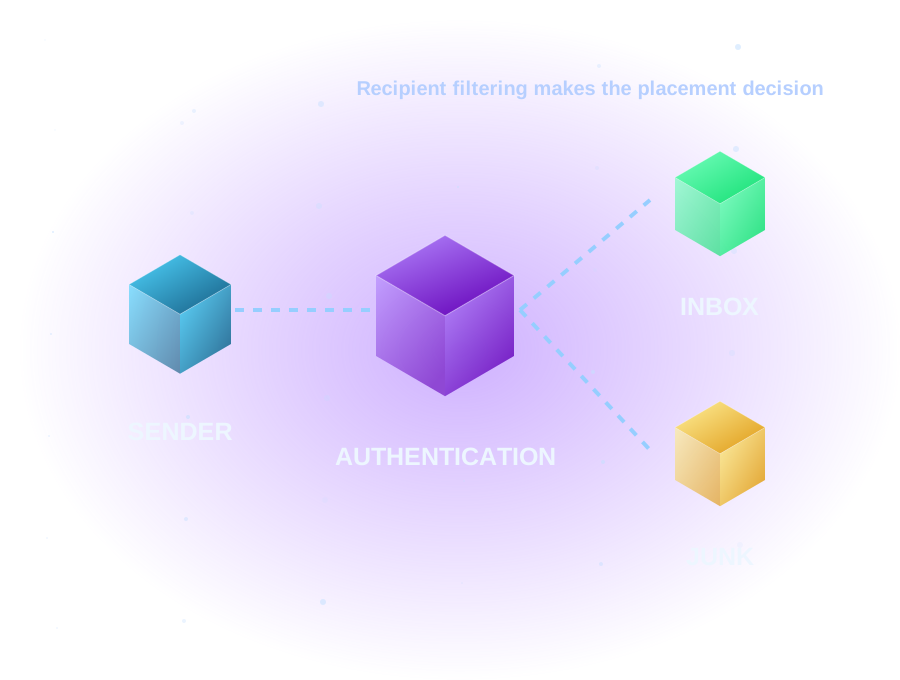
Recipient filtering can also consider content, bulk-mail characteristics, and policy. A fully authenticated message can still be junked. Microsoft’s anti-spam overview describes multiple filtering layers; do not respond to a spam complaint by disabling protection.
Conceptual flow only. Actual delivery involves additional systems and checks; the diagram is not a Microsoft administration screenshot.
SPF: authorize the actual sending source
Inspect the TXT record at the envelope-sender domain used by the affected path. A commercial Microsoft 365-only example is shown below. It is not a replacement record for a business that also sends through other services or uses a different Microsoft cloud.
ILLUSTRATIVE DNS EXAMPLE — NOT A DEPLOYMENT RECIPE
Name: example.com
Type: TXT
Value: v=spf1 include:spf.protection.outlook.com -all
That value authorizes the Microsoft 365 sending infrastructure for the domain. Inventory every legitimate sender before changing an existing record. Publishing another SPF record instead of combining authorized sources into one can cause a permanent error. Microsoft documents the commercial-cloud include value and other cloud variants in its SPF configuration guidance.
Look for:
- More than one
v=spf1record at the same name. Other unrelated TXT records can coexist. - A website, CRM, or marketing sender missing from the authorized-source inventory.
- An SPF record inspected at the visible From domain when the message actually uses a different envelope domain.
- DNS edits made at a provider that is not authoritative for the domain.
SPF has a limit of ten DNS-query-causing terms during evaluation, including nested processing. Counting only the visible include: entries is insufficient. permerror and a temporary DNS error call for different investigations. Forwarding may change the source seen by the final receiver, so compare the original and forwarded paths. See RFC 7208 for evaluation limits and forwarding considerations. Do not replace a dynamic cloud include with a guessed list of IP addresses.
Read-only SPF query
$Domain = 'example.com' # Replace with the message's envelope domain
Resolve-DnsName -Name $Domain -Type TXT -DnsOnly |
  Where-Object { $_.Type -eq 'TXT' } |
  ForEach-Object { $_.Strings -join '' }
Expected finding: one TXT record beginning with v=spf1 when SPF is configured; unrelated TXT records may coexist. Joining string segments reconstructs each individual record. Two SPF records at the same name indicate a problem. No matching record warrants investigation; a resolver/network error is a different finding. This query does not evaluate nested lookup limits or establish a message’s SPF result. Compare the receiver’s spf= and smtp.mailfrom. DNS query reference.
DKIM: check the signature that arrived
For an affected received message, inspect the DKIM signing domain (d=), selector (s=), and the receiver’s verification result. A published key by itself does not prove the sender actually signed that message.
Microsoft 365 custom-domain DKIM uses two CNAME selector records. Retrieve the exact assigned targets from the authorized configuration for your domain; Microsoft has both older and newer target formats. Do not build the target by guessing your tenant name. After an approved change, validate actual outgoing signatures rather than relying only on an enabled toggle. Microsoft’s DKIM guidance describes the record formats and verification process.
ILLUSTRATIVE RECORD NAMES — TARGETS INTENTIONALLY OMITTED
selector1._domainkey.example.com  CNAME  [exact assigned target]
selector2._domainkey.example.com  CNAME  [exact assigned target]
If DKIM is missing, identify which application sent the message and whether that path signs. If verification fails, check selector resolution and whether an intermediate system modified signed content. A signature from a vendor’s domain can pass yet fail to align with your visible From domain. Save the affected result before making a change; do not assume every sender uses the same selector or configuration.
Read-only DKIM checks
$Domain = 'example.com' # Replace with your custom sending domain
Get-DkimSigningConfig -Identity $Domain |
  Format-List Name,Enabled,Status,Selector1CNAME,Selector2CNAME
Expected finding: signing state and tenant-assigned selector targets. Missing configuration, disabled signing, or an error requires investigation rather than guessed DNS values. Configuration query reference.
| Configuration finding | Meaning and safe next action |
|---|---|
Enabled: True, Status: Valid |
Expected signing configuration. Still inspect an actual received message’s signature and alignment. |
Enabled: False |
Custom-domain signing is not enabled in this configuration. Identify the actual sender and signing domain before planning an administrator change. |
Status: CnameMissing |
Microsoft has not detected the required selector configuration. Read both assigned targets; check record type, authoritative zone, spelling, and DNS caches. |
Status: NoDKIMKeys |
DKIM keys have not yet been configured for this domain. Ask the authorized administrator to inspect the domain configuration and exact assigned selector values; creating keys, publishing records, and enabling signing are configuration changes, not read-only diagnosis. |
| Missing configuration, unfamiliar status, or query error | Confirm domain, tenant, and permissions with the administrator; do not generate guessed targets or rotate keys as a diagnostic shortcut. |
These configuration interpretations follow Microsoft’s DKIM verification and troubleshooting guidance. They are not a verdict on every sending application’s mail.
$Domain = 'example.com' # Replace with your custom sending domain
Resolve-DnsName -Name "selector1._domainkey.$Domain" -Type CNAME -DnsOnly
Resolve-DnsName -Name "selector2._domainkey.$Domain" -Type CNAME -DnsOnly
Expected finding: each CNAME’s NameHost matches its assigned target. Missing/different answers warrant authoritative DNS and cache checks. Matching records and an enabled state do not prove this message was signed or verified; inspect its selector, signing domain, and receiver result. Third-party senders may use other selectors.
DMARC: compare identities, then examine policy
A DMARC pass requires at least one successful, aligned SPF or DKIM result. Both do not have to pass. Compare the visible From domain with the SPF envelope domain and DKIM signing domain; matching display names are irrelevant.
Relaxed alignment permits the same organizational domain, while strict alignment requires an exact domain match. A raw SPF or DKIM pass for an unrelated service domain does not establish DMARC alignment. Microsoft’s DMARC guidance explains the distinction.
CONSTRUCTED HEADER EXAMPLE — NOT A CAPTURED MESSAGE
From: Accounts <accounts@example.com>
Authentication-Results: receiver.example.net;
  spf=pass smtp.mailfrom=bounce.example.org;
  dkim=pass header.d=example.org;
  dmarc=fail header.from=example.com
Here the two raw authentication passes belong to example.org, while the visible From uses example.com. Neither aligns, so DMARC fails. The example.* names are reserved illustrations, not real customer identities.
The record at _dmarc expresses a requested treatment for failures: p=none requests no DMARC-specific disposition, p=quarantine requests suspicious treatment, and p=reject requests rejection. Receiver policy still matters. p=none is not an inbox allowlist. Moving straight to enforcement without understanding legitimate senders can disrupt real mail. RFC 7489 covers policy and alignment. A reporting destination must be real, authorized, and monitored; no fabricated reporting mailbox is supplied here.
Read-only DMARC query
$Domain = 'example.com' # Replace with the visible From domain
Resolve-DnsName -Name "_dmarc.$Domain" -Type TXT -DnsOnly |
  Where-Object { $_.Type -eq 'TXT' } |
  ForEach-Object { $_.Strings -join '' }
Expected finding: a valid policy begins with v=DMARC1 and contains a policy. No record at a From subdomain is not a complete verdict: organizational-domain discovery can apply. Multiple DMARC records at one policy name are invalid. Omitted aspf and adkim default to relaxed alignment.
| Receiver evidence | Meaning |
|---|---|
| SPF passes and its envelope domain aligns with From | SPF can satisfy DMARC even if DKIM fails. |
| DKIM passes and a signing domain aligns with From | DKIM can satisfy DMARC even if SPF fails. |
| Both pass only for unrelated domains | Neither satisfies DMARC alignment. |
| DMARC passes but mail is junk | Investigate recipient filtering and reputation. |
Message trace: locate Microsoft’s part of the journey
An authorized administrator can use the Exchange admin center’s Mail flow → Message trace, where available. Search with the affected sender, recipient, and a narrow time window; inspect the matching message’s status and events. Microsoft documents this path in its message trace guide.
Distinguish receipt, rejection, deferral, and delivery. For outbound mail, successful handoff to an external recipient system does not establish placement in that recipient’s inbox. Pair the trace with the recipient’s headers and reported folder. For incoming mail, examine the receiving organization’s relevant policies and quarantine information through authorized tools.
If the portal or required permissions are unavailable in your provisioned account, use the account’s established support route. Do not buy a license or change provisioning just to follow this guide.
Read-only trace queries
Advanced, optional: use your existing authorized Exchange session. Replace the reserved sender and recipient. Start with a narrow UTC window around the message; the example uses the last 24 hours.
$Sender = 'sender@example.com' # Replace
$Recipient = 'recipient@example.net' # Replace
$End = [DateTime]::UtcNow
$Start = $End.AddHours(-24)
$Query = @{
  SenderAddress = $Sender
  RecipientAddress = $Recipient
  StartDate = $Start
  EndDate = $End
  ResultSize = 5000
}
$Traces = @(Get-MessageTraceV2 @Query -ErrorAction Stop)
$Traces | Format-Table Received,SenderAddress,RecipientAddress,Subject,Status,MessageId,MessageTraceId
Expected finding: message/recipient rows with transport status. Keep the original objects in $Traces; formatted display text cannot be passed as trace objects.
Limits: V2 searches up to 90 days back, at most 10 days per query. The default result limit is 1,000; the maximum is 5,000, used here. If the cap is reached, narrow the window or follow Microsoft’s continuation guidance; do not assume completeness or simply increase the limit. Output timestamps are UTC. Trace query reference.
No rows? Check the sender/envelope identity, recipient, UTC window, tenant, access, available history, and whether tracing has caught up. A query error is not an empty successful search. No returned results do not necessarily mean the message was never sent. Preserve the bounce and recipient evidence.
From the list, identify the correct message by time, recipient, and full MessageId (including angle brackets if present). In the same session, replace the placeholder below with that matching row’s actual Message-ID. The guard stops unless exactly one row matches; do not automatically take the first row.
$MessageId = 'REPLACE_WITH_FULL_MESSAGE_ID_FROM_MATCHING_ROW'
$Matches = @($Traces | Where-Object {
  $_.MessageId -eq $MessageId -and $_.RecipientAddress -eq $Recipient
})
if ($Matches.Count -ne 1) {
  throw 'Expected one matching message/recipient row. Refine the query before continuing.'
}
$SelectedTrace = $Matches[0]
$SelectedTrace | Get-MessageTraceDetailV2 -StartDate $Start -EndDate $End -ErrorAction Stop |
  Format-Table Date,Event,Detail -Wrap
Expected finding: events for the selected message and recipient. The original trace object supplies its real MessageTraceId and RecipientAddress to the detail cmdlet; the original time window is retained. Inspect long details individually if the table obscures them. Trace detail reference.
Interpret the trace before changing anything
| Outcome | Diagnostic meaning and safe next action |
|---|---|
| Delivered / successful external SEND | Transport reached its destination or next system. For an external recipient, obtain folder evidence and received headers. |
| Failed / FAIL | Read the rejection and event details; investigate the stated cause before retrying. |
| Pending / DEFER | Processing or retry remains underway; inspect the event and recheck rather than sending duplicate batches. |
| GettingStatus | Status is not yet resolved; recheck the same message later. |
| FilteredAsSpam / Quarantined | Inspect the classification, policy, and quarantine details with an authorized administrator. |
| Expanded | Distribution-group processing occurred; follow each relevant recipient’s subsequent trace. |
Status and event labels describe different parts of processing. Read the complete sequence, not a single label. Microsoft’s trace guide explains the transport view.
Headers: read what the trusted receiver recorded
Use the header results stamped by the trusted receiving system. A sender can insert header text, so an arbitrary Authentication-Results line is not automatically trustworthy. Compare it with the message path and the recipient’s known mail system. RFC 8601 explains the trust boundary for authentication-result headers.
CONSTRUCTED AUTHENTICATION EXAMPLE — NOT CUSTOMER DATA
Authentication-Results: receiver.example.net;
  spf=pass smtp.mailfrom=example.com;
  dkim=pass header.d=example.com;
  dmarc=pass header.from=example.com
This aligned example still does not predict inbox placement. For messages processed by Microsoft, X-Forefront-Antispam-Report and related fields can provide additional clues, such as spam confidence level (SCL) and threat category (CAT). These fields are specific to the processing system, and a score needs policy context. Microsoft’s header reference documents the fields.
Interpret Microsoft filtering fields
Read fields added by the trusted Microsoft processing system, not arbitrary sender-supplied text.
| Field | Useful interpretation / safe next action |
|---|---|
CAT |
Applied threat category: for example, SPM spam, HSPM high-confidence spam, PHSH phishing, BULK bulk, or OSPM outbound spam. Review the corresponding policy/incident evidence. |
DIR |
INB, OUT, or INT identifies inbound, outbound, or internal processing. Confirm the investigation direction. |
SFV |
SPM indicates spam filtering; SKB a policy block-list match; BLK a user’s blocked-sender match. Review the applicable list or filtering decision rather than broadly allowing the sender. |
SCL |
A confidence value, not the cloud classification/action verdict. Current Microsoft guidance directs cloud investigations to CAT and DIR; SCL also has on-premises/hybrid relevance. |
Other or missing values need context; do not infer a clean message from an absent field or undocumented diagnostic code. Match headers with trace events and the recipient’s actual outcome. Microsoft’s antispam header reference defines the fields.
Keep headers private: they can expose addresses, routing details, IPs, and message identifiers. Use an approved evidence-sharing route with a trusted administrator. This guide does not ask you to upload them or paste them into an external analyzer.
Reputation and other delivery factors
If authentication and alignment pass, widen the investigation. Compare the recipient providers affected, the sending path, message content, links, attachments, and whether volume changed abruptly. Is the issue confined to one organization or one campaign? Does a short, expected reply follow the same path and reach the same recipient differently? These comparisons help narrow a hypothesis without promising a single-cause fix.
Domain and IP reputation can matter, but a clean result from one reputation service does not prove that every recipient will accept your mail. Shared cloud sending infrastructure is not an IP you can simply replace yourself. Microsoft’s outbound protection overview describes restrictions and monitoring for suspicious outbound activity.
If an account may be compromised, treat it as a security incident with an authorized administrator. Do not keep retrying large batches or weaken filtering. If Microsoft incorrectly classifies legitimate incoming mail, authorized admins can examine its submission workflow; use the applicable process and share only information you are authorized to disclose. Another recipient provider has its own review process.
Follow an evidence-first decision path
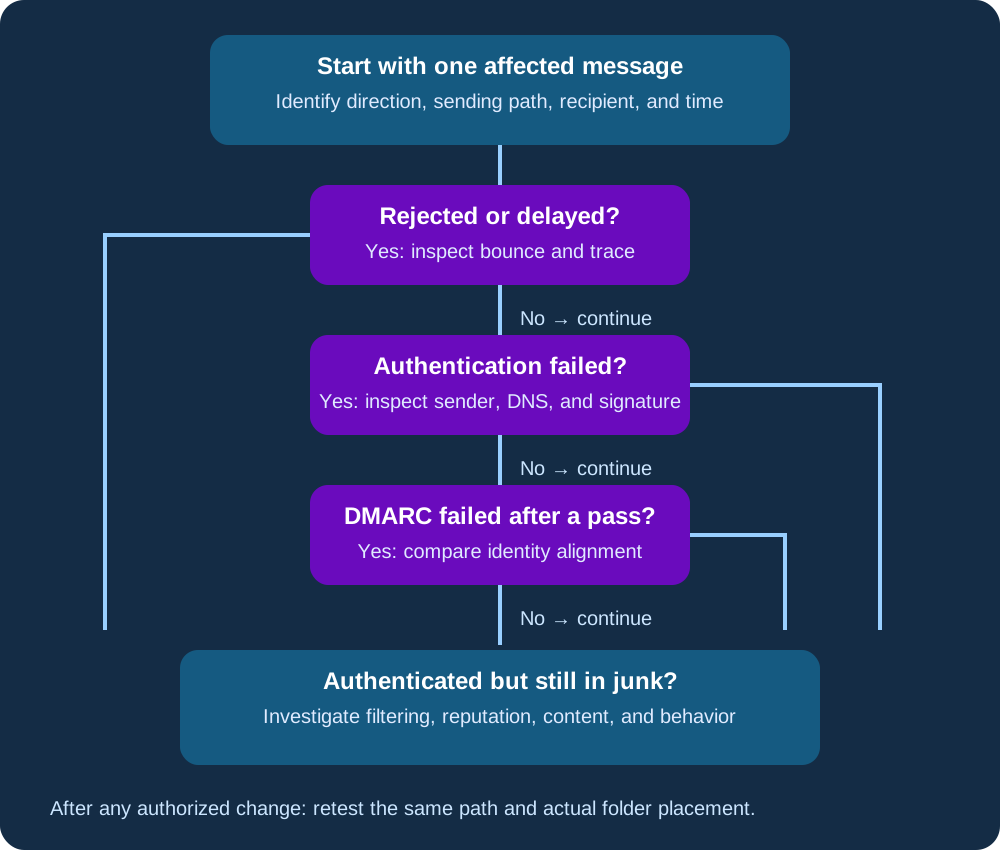
Original troubleshooting decision tree. It summarizes investigation choices, not an automated diagnosis or guaranteed fix.
- Was the message rejected or delayed? Read the bounce or trace event first. Do not label every failure “spam.”
- Did SPF or DKIM fail? Inspect the actual sender, authoritative DNS, signature, and any intermediaries.
- Did authentication pass but DMARC fail? Compare domains and alignment rather than adding records blindly.
- Did DMARC pass but the message land in junk? Investigate recipient policy, reputation, content, and sending behavior.
- Does the evidence disagree? Verify it describes the same message, recipient, time, and sending path.
Changes that can disrupt mail flow
Stop the read-only path here. These require the responsible administrator’s approval, scope review, preserved configuration, and a rollback plan. No write commands are supplied.
| Change | Risk and preparation |
|---|---|
| Replace SPF or remove a sender | Legitimate applications may fail; inventory all sending paths first. |
| Change DKIM targets, enable signing, or rotate keys | Incorrect or uncoordinated changes can break verification; use tenant-assigned values. |
| Enforce DMARC or tighten alignment | Legitimate unaligned mail can be blocked; review sender coverage and reports first. |
| Alter connectors, routing, rules, or filtering | Effects can extend beyond one mailbox; review the full affected scope. |
| Add broad allowlists or bypass protection | Malicious mail can evade checks; use the applicable false-positive review process instead. |
Make one justified, authorized change at a time; test representative legitimate paths and monitor afterward. Reporting destinations must be real, authorized, and monitored.
Test whether the problem is actually fixed
Treat improvement as evidence across representative paths, not a green check from a single tool. Use recipients you control or who consent to the test. Preserve a baseline, make one authorized change at a time, and allow the relevant DNS caches to expire; there is no universal propagation timer.
- Repeat the same sending application and recipient-provider combination that failed.
- Also test each legitimate path: Outlook, website mail, CRM, or marketing system as applicable.
- Capture new received headers and compare SPF, DKIM, and alignment with the baseline.
- Check both transport outcome and actual folder placement. A trace saying delivered is not enough.
- Confirm ordinary replies, attachments, and forwarded paths where those workflows matter.
- Recheck after normal sending resumes, and monitor legitimate mail and available DMARC reports before stronger enforcement.
Record observed results, timestamps, and remaining exceptions. If a message now authenticates correctly but still lands in junk, call that an authentication improvement—not a complete deliverability fix.
Know when to involve an administrator
Seek help through your established product support route when you lack tenant or DNS permissions, have multiple senders or hybrid routing, suspect compromise, or cannot reconcile trace and received headers. Prepare a concise private evidence package: symptom, direction, sending path, affected-provider pattern, time window, redacted headers, trace findings, and recent changes. Never include passwords, recovery codes, private signing keys, or authentication tokens.
Use your established support channel with the evidence collected above. If you are comparing email products, explore the related options below—but buying a different plan is not presented as a spam fix.
WHEN IT FITS YOUR NEXT STEP
Microsoft 365, explained.
Explore Microsoft 365 email and productivity options around the people and workflows that matter to your business. Product selection is separate from troubleshooting an existing service.